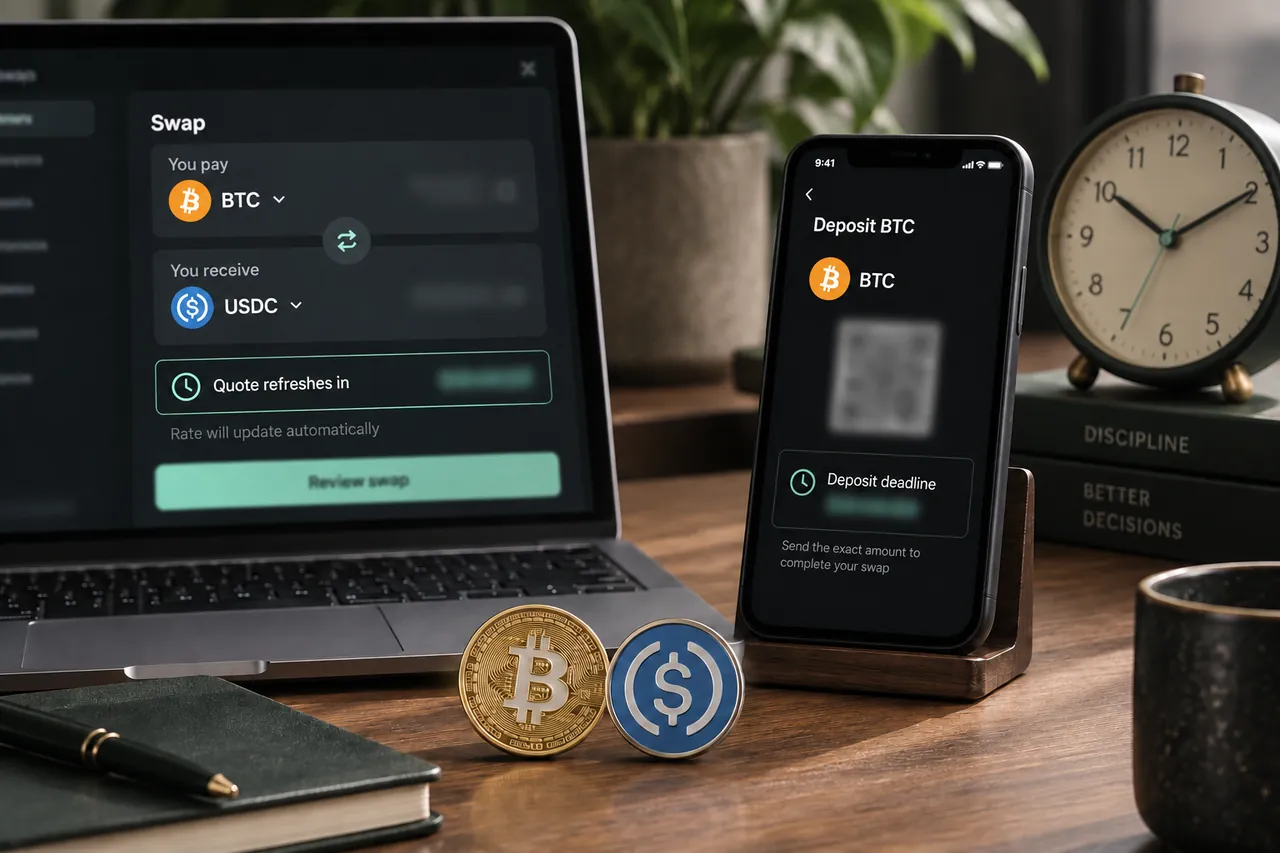
Begin with the confirmed provider instructions
Create the swap before attempting to pay it. The provider deposit address appears on the confirmed order and belongs to the selected sending asset and network. The recipient entered earlier is your payout destination; it is not the address to which you should send the deposit. Review the generated instructions as a complete set.
Keep the order page visible while preparing the wallet transfer. Check its swap ID, requested amount, network and deadline before copying or scanning anything. If you have several browser tabs or previous swaps open, identify the active order first. A valid-looking address from a different tab can still be the wrong destination for the payment you intend.
Check the asset and network togetherUnderstand exactly what the QR supplies
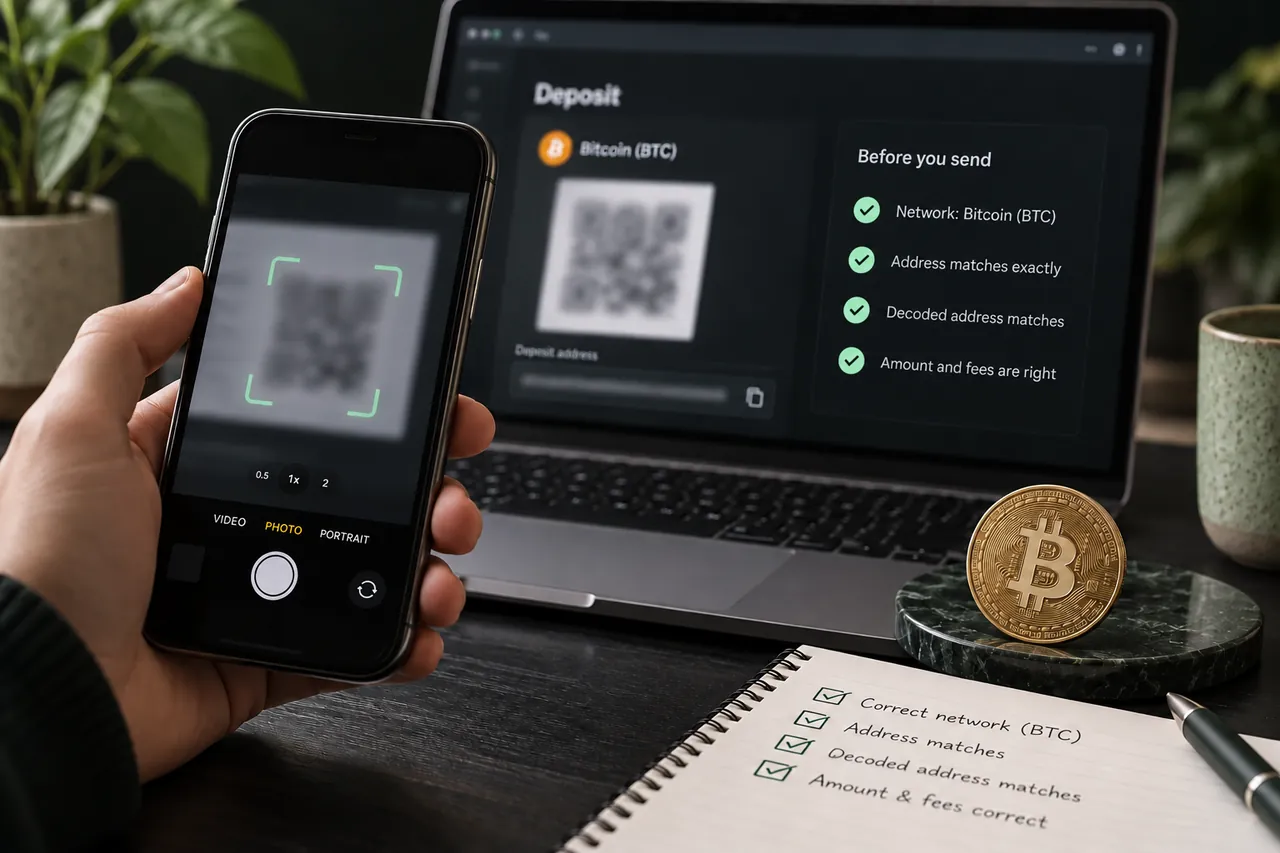
The current deposit QR encodes the provider deposit address as plain address content. It does not embed the required amount, payment network or a separate memo or tag. A wallet scanner may recognize the address format, but you must still select the correct asset and network and enter the remaining order instructions.
After scanning, inspect what the wallet actually populated. A scan preview is not authorization to send. Compare the decoded address with the order, confirm the selected sending balance and enter the exact required amount. If the order displays a memo or tag, supply it in the wallet’s appropriate field rather than assuming the QR included it.
Use the download icon with an order label
The small download icon saves the displayed QR image. That helps when moving the deposit address to another device, but it creates a file that can outlive the order. Keep any downloaded image associated with the correct swap ID and confirmed instructions. Do not treat the image as a reusable account deposit address.
A saved QR should not override a fresh order page. If the order expired or you created a new swap, obtain the new deposit instructions and check them again. Remove confusing old payment shortcuts from your workflow. The fact that an image still scans does not mean the provider still accepts that payment under the earlier terms.
Compare the complete pasted or scanned address
Address verification is not just checking that the first and last characters look familiar. Compare the complete destination string with the order on a trusted display, particularly after copying between apps or devices. If your wallet or hardware device shows a final destination confirmation, use it as part of that review before authorizing.
A checksum or wallet validation can catch some formatting errors, but it cannot establish that a valid address is the one you intended. Avoid copying addresses from search adverts, support messages or previous wallet history when the confirmed order supplies the actual destination. If a pasted value changes unexpectedly, stop and investigate the device or application before sending.
| QR or copy check | What you still verify |
|---|---|
| Address populated | Full decoded address matches current order |
| Network selected | Exact sending asset version and chain |
| Amount entered | Required deposit, not total wallet balance |
| Extra field | Separate memo or destination tag if instructed |
| Order active | Correct swap ID and deposit window |
A hypothetical mobile scan from a desktop order
Suppose a user creates a hypothetical USDT-on-TRON swap while viewing the order on a desktop. The mobile wallet scans the QR and fills the deposit address. The user selects USDT on TRON, enters the order’s illustrative 200 USDT amount, then checks the final wallet screen against the order. The code has not chosen an Ethereum USDT balance or entered the 200 amount automatically.
If the wallet displays a different network or a saved address label, the user resolves that discrepancy before authorizing. After broadcast, the sending reference is saved beside the swap ID. This routine remains useful even when scanning works perfectly because the possible mistake may be in the selected balance or amount rather than the encoded address.
Treat a required memo as a separate destination instruction
Some assets and receiving services use a memo or tag to identify a customer behind a shared address. When the confirmed provider deposit instructions include one, enter it exactly in the appropriate sending-wallet field. Your recipient’s memo and the provider deposit memo are different roles and need not have the same value.
If the wallet cannot send the required extra field, pause instead of appending arbitrary text to the address or using a note field whose meaning is unclear. Ask support or use a compatible sending method before depositing. A confirmed transfer to a shared address without the correct identifying field can require a separate provider investigation.
A FEW MORE DETAILS
Common questions
Does the QR include the deposit amount?
No. The current QR represents the provider address only. Enter the amount from the confirmed order and compare it with the final wallet preview.
Can I scan an old downloaded QR for a new swap?
Use the deposit instructions generated for the new order. An old image can remain readable after its order window or provider conditions have changed.
Does a valid QR prove the address is safe?
No. It proves the scanner can decode content. Compare the decoded address with the current confirmed order and verify the remaining transaction fields.
Where do I enter a memo after scanning?
Use the wallet field intended for the network’s memo or tag, if the order requires one. Do not assume a general wallet note or an address suffix serves the same purpose.
Prepared by Tornado Swap to explain the swap workflow. Network conditions and provider offers can change; check the current order instructions before sending funds.